
Advanced Search
Advanced Search can be used to locate assets by searching data in any field in the catalog, including the text of cataloged documents. Advanced Search is considerably more flexible and powerful than QuickFind.
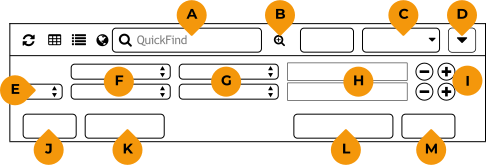
The Advanced Search panel
-
QuickFind field
-
Advanced Search: Click to show or hide the Advanced Search controls.
-
Sort field: Select the field to sort the main window view.
-
Sort order: Click to sort the view in ascending or descending order.
-
Boolean: Determines how criteria are used in searches: AND means both must match, OR means either must match.
-
Search field: Choose a field to search on.
-
Search operator: How to search for the value.
-
Search term: Enter a value to match in the search field.
-
Add/Remove criterion: Click + to add another search criterion, − to remove the search criterion.
-
Close: Closes the Advanced Search options.
-
Reset Search: Clears the Advanced Search criteria and resets all options.
-
Save as Smart Gallery: Click to create a Smart Gallery based on these search criteria.
-
Search: Click to start the search with the specified criteria.
Search results can also be converted into search criteria for Smart Galleries on the fly. For more information on Smart Galleries, see Organizers.
The Advanced Search tool only searches whatever is selected in the Organizers panel.
To use Advanced Search:
-
Select an organizer in the Organizers panel.
-
Click Advanced Search
 at the right end of the QuickFind field.
-
Select a field to search from the drop-down menu.
-
Select a search operator from the second drop-down menu.
-
Enter a search term into the text box.
Depending on the field type and the search operator you select, a search term may not be required. For example, if you search using the
existssearch operator, a search term is not required since you only want to locate assets that have any data in the selected field. -
If more detailed search parameters are required, click + to the right of the first parameter to add another parameter. Repeat the above steps to add more search parameters, up to a maximum of 10.
-
When you are ready to start your search, click Search or press the Enter key.
If you tend to search your catalog using these search parameters frequently, click Save as Smart Gallery to save your search criteria. Every time you open a smart gallery, Portfolio automatically searches the catalog for assets based on these search parameters.
Tip: When you click a keyword to find all assets using that keyword, Portfolio starts an Advanced Search operation.
Date searches
Some search fields include dates; Catalogued, Changed, and Created indicate the dates that an asset was added to the catalog, the most recent date the asset file was modified, and the date the asset file was created.
Note: All date fields always include a time as well; if this information does not exist in the source, then Portfolio sets the time as 12:00 AM.
The operators you can use when searching on date fields are:
-
exists/does not exist: whether the asset date actually exists
-
on or before: the asset date is exactly, or falls before, the target search date and time
-
before: the asset date falls before the search date
-
on or after: the asset date is exactly, or falls after, the search date
-
after: the asset date falls after the search date
-
in the future: the asset date falls after the current date and time
-
in the past: the asset date falls before the current date
-
in the next: the asset date falls within the specified number of days in the future
-
in the previous: the asset date falls within the specified number of days in the past
-
today: the asset date is the current date
-
this month: the asset date falls within the current calendar month
-
this year: the asset date falls within the current year