
How to add keywords
For all the details on keywords, see Keywords.
To add keywords to an asset:
-
Select an asset.
-
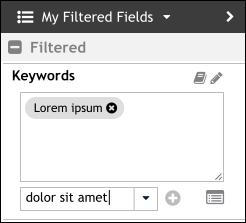
Find the Keywords section of the Fields panel at the right side of the window.
-
Click in the Add Keyword field, type a keyword, and press Enter.
Pre-defined keywords
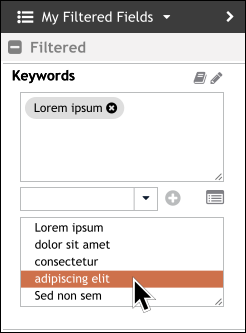
If the Add Keyword field isn’t visible, you can add keywords from a pre-defined list of “approved” keywords.
To add keywords from an approved list:
-
Click the list icon
 at the bottom right of the keywords list.
-
Double-click a keyword in the approved list to add it to the asset’s keyword list.
Notes
-
If the Fields panel isn’t open at the right side of the Portfolio client window, click the
 icon at the top right of the window.
-
If the Keywords section isn’t present:
-
Click the field list menu
 at the top of the Fields panel.
-
Choose Edit Fields to open the Field Chooser.
-
Find Keywords in the list on the left and drag it to the list on the right.
-
Click Save.
-
-
If the Add Keyword field isn’t present, and clicking the list icon
doesn’t display the approved keywords list, then it’s likely that you don’t have permission to add keywords in the current catalog. If you think you should, check with your Catalog Administrator.